
The information below is taken from the following Salesforce Article:
https://help.salesforce.com/s/articleView?id=sf.add_time-based_token.htm&type=5
Salesforce requires all users to verify their identiy when logging in, using an additional authentication method, on top of the standard username and password. This process is known as Multi-Factor Authentication or MFA and provides an additional level of security for your instance of RightsZone.
If you don't already have an Authentication App on your mobile device, you will need to download one. Salesforce have their own authenticator app which can be used and details of how to set up MFA using the Salesforce Authenticator can be found here: Setting Up Salesforce Authenticator.
This article covers how to set up a 3rd party app such as Google or Microsoft.
If you don't want to use an authenticator app you can use a physical key instead, details of which can be found here:
Step 1
Ensure you have an authenticator app downloaded on to your phone.
Step 2
Navigate to "Personal Information" in your Personal Settings.
- Click on your avatar in the top right hand corner of the screen.
- Click on settings
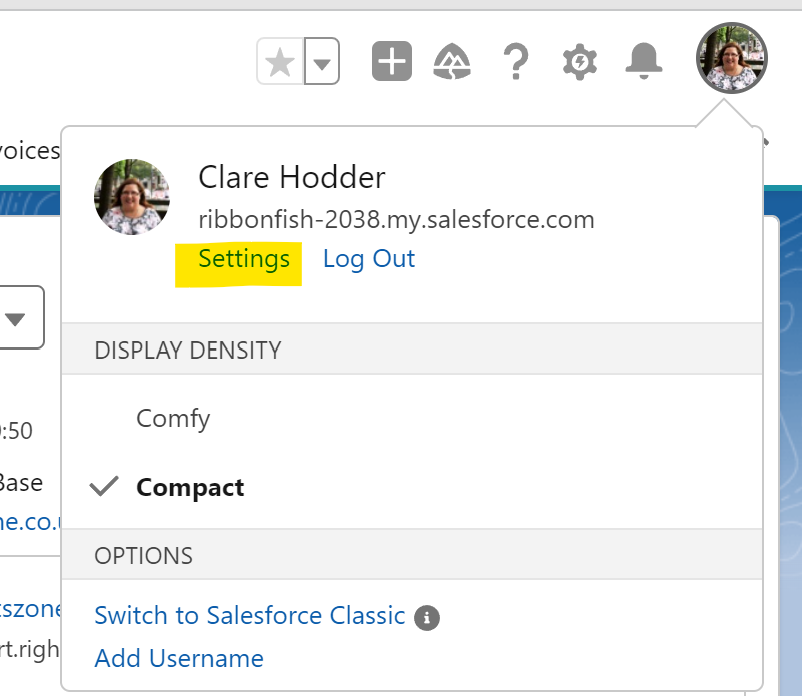
- From the settings screen click on Advanced User details in the left hand menu

- Scroll down to find App Registration: One-Time Password Authenticator and click Connect

Step 3
- You will be prompted to log in to your RightsZone account and then a QR code will be displayed.
- Scan the QR code using your authenticator app
- Your authenticator app will display a code. Enter this code in the Verification Code field that appears on the RightsZone screen.
- Click Connect
This should complete the process. When you log in, if you are asked to verify your identity enter the code that is generated by the app and click Verify.
IMPORTANT: We recommend you back up your Connected Accounts so that in the event that your phone is lost or updated you are still able to access RightsZone. The information below gives you more information on how to perform the backup process.

Backup Connected Accounts - MFA